How to Create a Google Business Profile (Step-by-Step, 2026)
Get your business on Google Search and Maps for free in about 15 minutes — every step explained with pictures.
 Nancy Dahiya7 min read
When someone near you searches "dentist near me" or "best café in Rohtak", Google shows a small map with three businesses.
Those businesses get most of the calls.
And every one of them has the same thing: a Google Business Profile.
The good news? It's 100% free, and you can create yours in about 15 minutes.
In this guide, I'll show you exactly how — step by step, with pictures.
- A Gmail account that you control (not your staff's)
- Your exact business name (as written on your signboard)
- Your full address with PIN code, and your phone number
- Your shop or clinic, ready to show on video if Google asks
What Is a Google Business Profile?
A Google Business Profile (earlier called "Google My Business") is your free listing on Google Search and Google Maps.
It shows your name, address, phone, hours, photos and reviews — all in one place.
Customers can call you, get directions or visit your website in one tap, without even opening your website first.
Not sure if you need a website as well? Read Do I Really Need a Website for My Small Business?
Step #1: Open Google Business Profile and Sign In
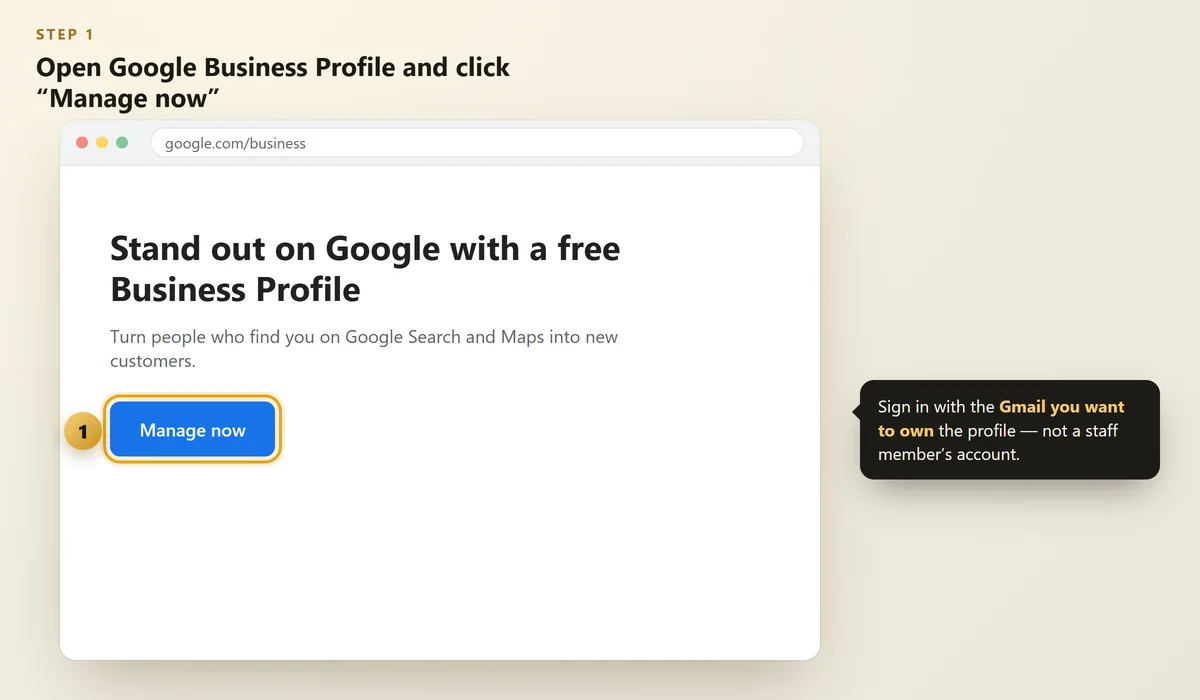
Go to google.com/business and click Manage now.
Sign in with the Gmail account that should own the profile for years.
 Illustration
Many owners let a staff member or an agency create the profile with their email. When that person leaves, you lose access. Always use your own account — you can add others as managers later.
Step #2: Add Your Business Name and Category
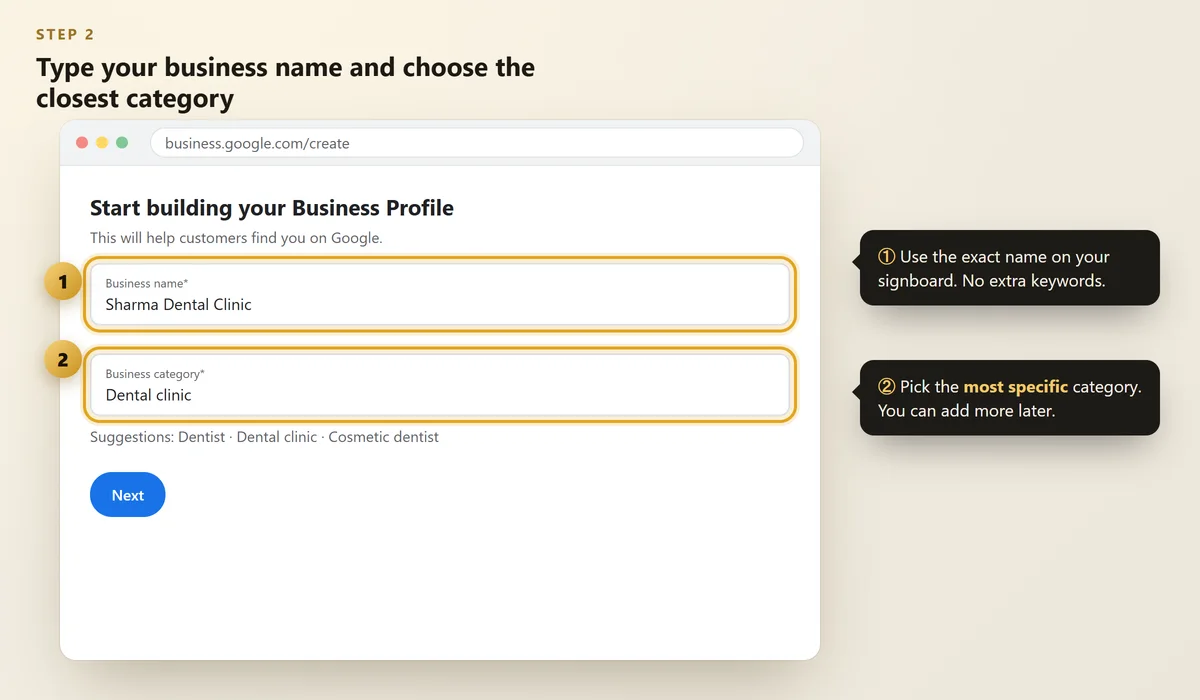
Type your business name exactly as it appears on your signboard.
Don't add extra words like "Best Dentist in Rohtak". It breaks Google's guidelines and can get your profile suspended.
Next, choose your business category. This is one of the most important choices you'll make.
Pick the most specific category that fits. For example, "Dental clinic" is better than just "Clinic".
 Illustration
Step #3: Add Your Location (or Service Area)
Google will ask: "Do you want to add a location customers can visit?"
- Yes — if customers come to you (shop, clinic, coaching centre, café)
- No — if you go to customers (plumber, home tutor, AC repair). You'll add a service area instead.
Enter your full address and then drag the map pin to your exact entrance. A wrong pin sends customers to the wrong gate.
Step #4: Add Your Phone Number and Website
Add a phone number that someone actually answers during business hours.
If you have a website, add it. If you don't, you can skip this for now.
Google may also offer to send you updates by text. That's optional.
Step #5: Verify Your Business
Google needs to confirm that your business is real. This is called verification.
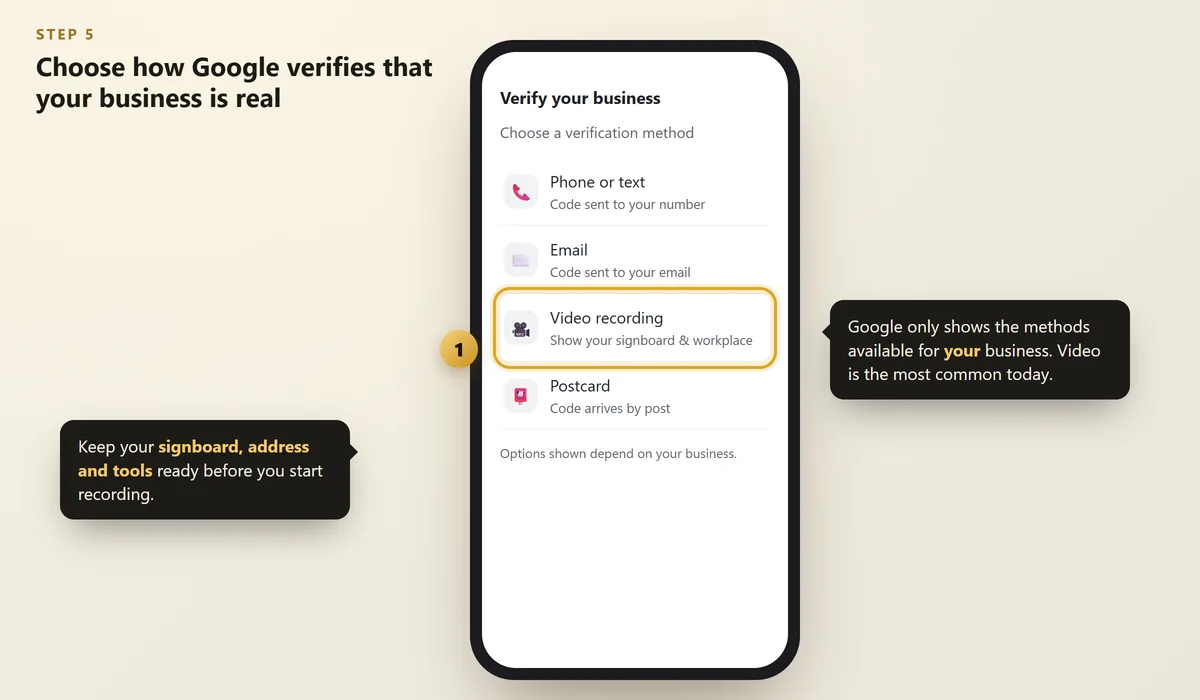
You'll see one or more of these options:
- Phone or text — a code is sent to your number
- Email — a code is sent to your email
- Video recording — you record a short video of your signboard, workplace and tools
- Postcard — a code arrives by post (less common now)
 Illustration
Which options you see depends on your business — you can't choose freely. Google explains each method on its verification help page.
Record in one continuous shot: start outside with your signboard and street, walk in, then show your counter, equipment or tools, and finally something that proves you manage the place (like unlocking the counter or showing staff-only areas).
Step #6: Complete Your Profile After Verification
Verification is just the start. A half-empty profile won't rank well.
Once you're verified, add:
- Opening hours (and special hours for festivals)
- A short description of what you do and for whom
- Your services or products
- At least 10 real photos — outside, inside, team and work
Use our free Google Profile Checklist to tick off every item. For the full optimisation process, read How to Optimize Your Google Business Profile.
Common Mistakes to Avoid
Mistake | What happens | Do this instead |
|---|---|---|
Adding keywords to your name | Profile can be suspended | Use your real signboard name |
Creating a second profile | Duplicates confuse Google | Claim or fix the existing one |
Wrong map pin | Customers go to the wrong place | Drag the pin to your entrance |
Staff email as owner | You lose access later | Own it yourself, add managers |
Already have a profile but it's not showing up? Read Why Is My Business Not Showing on Google Maps?
FAQs
Is Google Business Profile really free?
Yes. Creating and managing a Google Business Profile is completely free. Be careful of anyone who calls claiming to be from Google and asks for money to "verify" or "rank" your listing.
How long does verification take?
Phone, email and video verification usually finish within a few days. Video reviews can sometimes take longer. If Google asks for more information, reply quickly and keep your details consistent.
Can I create a profile without a shop address?
Yes. If you visit customers instead of them visiting you, hide your address and set a service area (for example, the cities or areas you cover).
My business already appears on Google Maps. Should I create a new profile?
No. Search for your business on Google Maps and use "Claim this business" or "Own this business?" to take control of the existing listing. Creating a duplicate causes problems.
Can someone else manage my profile for me?
Yes. Keep yourself as the owner and add your staff or agency as a manager. That way you never lose control.
Final Thoughts
Your Google Business Profile is the single most important free tool for getting local customers.
Create it today, verify it, and then fill every section. It's 15 minutes that can bring calls for years.
Want us to check your profile?
Get a free visibility audit — we review your Google profile, website and socials and send the 5 most important fixes on WhatsApp.
Written by Nancy Dahiya
Nancy is the founder of Pehchaan Digital. She helps hospitals, coaching institutes, hotels and local businesses get found online — and writes these guides in plain language so owners can see what actually works.
Keep reading
All guides → Google & Local SEO
Google Business Profile Posts: 20 Post Ideas That Bring Customers
How to post on your Google profile, what makes a post work, and 20 ready ideas for clinics, coaching centres, cafés and shops.
 Google & Local SEO
Local Citations in India: Where to List Your Business (Free)
Why your name, address and phone must match everywhere — and the free directories every Indian small business should use.
 Google & Local SEO
Why Is My Business Not Showing on Google Maps? 12 Reasons (and Fixes)
Searched for your own business and it isn't there? Here are the most common reasons and exactly how to fix each one.