Google Search Console for Beginners: Get Your Website on Google
Add and verify your site, submit your sitemap, check pages with URL Inspection and understand your search report.
 Nancy Dahiya8 min read
You built a website. It looks great.
But when you search for it on Google… nothing.
Sound familiar?
The fix usually starts with a free tool from Google called Google Search Console.
In this guide, I'll show you how to set it up — even if you're not technical at all.
What Is Google Search Console?
Google Search Console is a free tool that shows how Google sees your website.
With it, you can:
- Tell Google about your website and all its pages
- See which searches bring people to your site
- Find pages that Google can't show, and why
- Ask Google to check a new or updated page
You can read Google's own overview in About Search Console.
Step #1: Add Your Website as a "Domain" Property
Go to Google Search Console and sign in with your Google account.
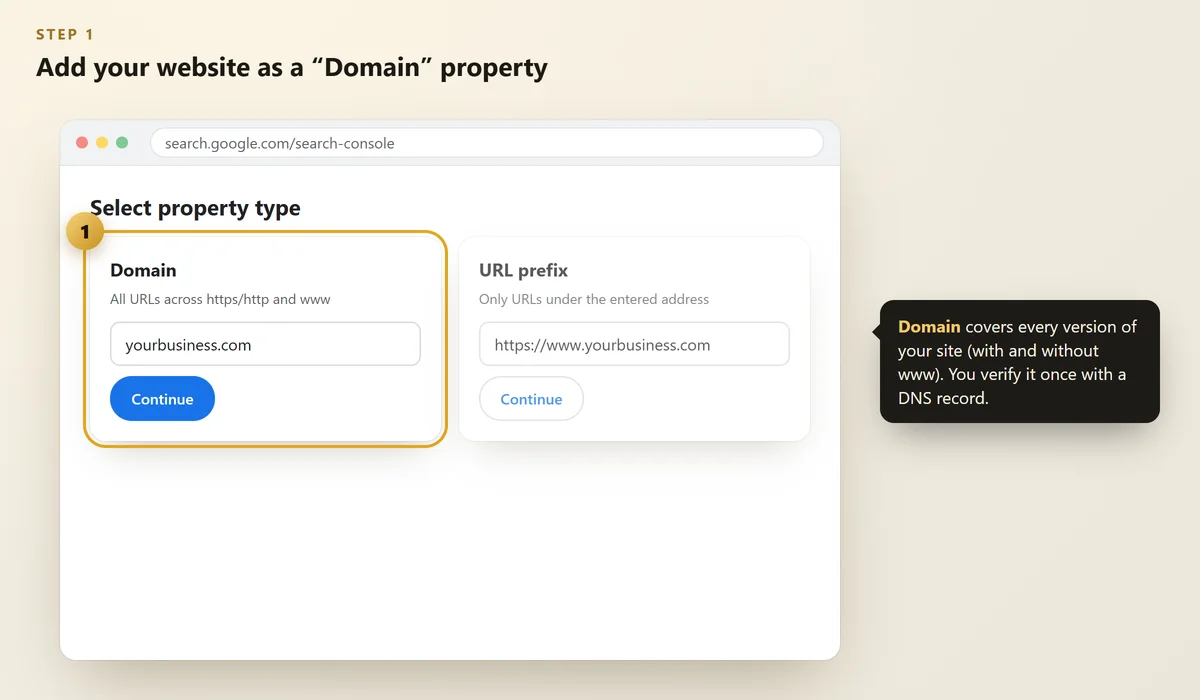
Google asks you to choose a property type. You'll see two options:
 Illustration
- Domain — covers everything: with and without www, http and https. Recommended.
- URL prefix — covers only one exact address. Easier to verify, but more limited.
Type your domain without https or www — for example, yourbusiness.com — and click Continue.
Step #2: Verify That You Own the Website
For a Domain property, Google gives you a short TXT record to add in your domain's DNS settings.
- Copy the TXT record from Search Console
- Open the place where you bought your domain (or your hosting, e.g. Vercel, GoDaddy, Hostinger)
- Find DNS settings → add a new TXT record → paste it
- Go back to Search Console and click Verify
Sometimes it works in minutes; sometimes DNS takes a few hours to update. Google lists every method in Verify your site ownership.
Don't delete the TXT record after verifying. Google checks it again from time to time — if it's gone, you lose access.
Step #3: Submit Your Sitemap
A sitemap is a list of all the pages on your website. It helps Google find them faster.
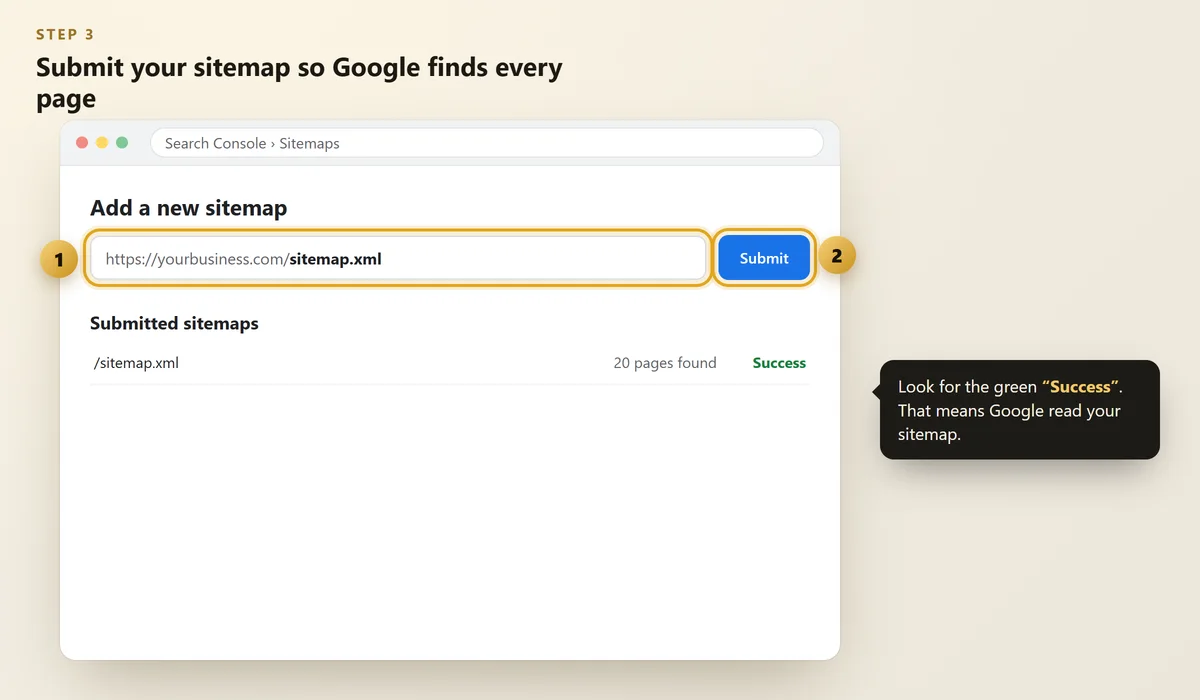
Most modern websites create one automatically at yourbusiness.com/sitemap.xml. (Our site's is at /sitemap.xml.)
In Search Console, open Sitemaps, type sitemap.xml and click Submit.
 Illustration
Want to understand sitemaps better? Read Google's What is a sitemap and the Sitemaps report help.
Step #4: Check Any Page with URL Inspection
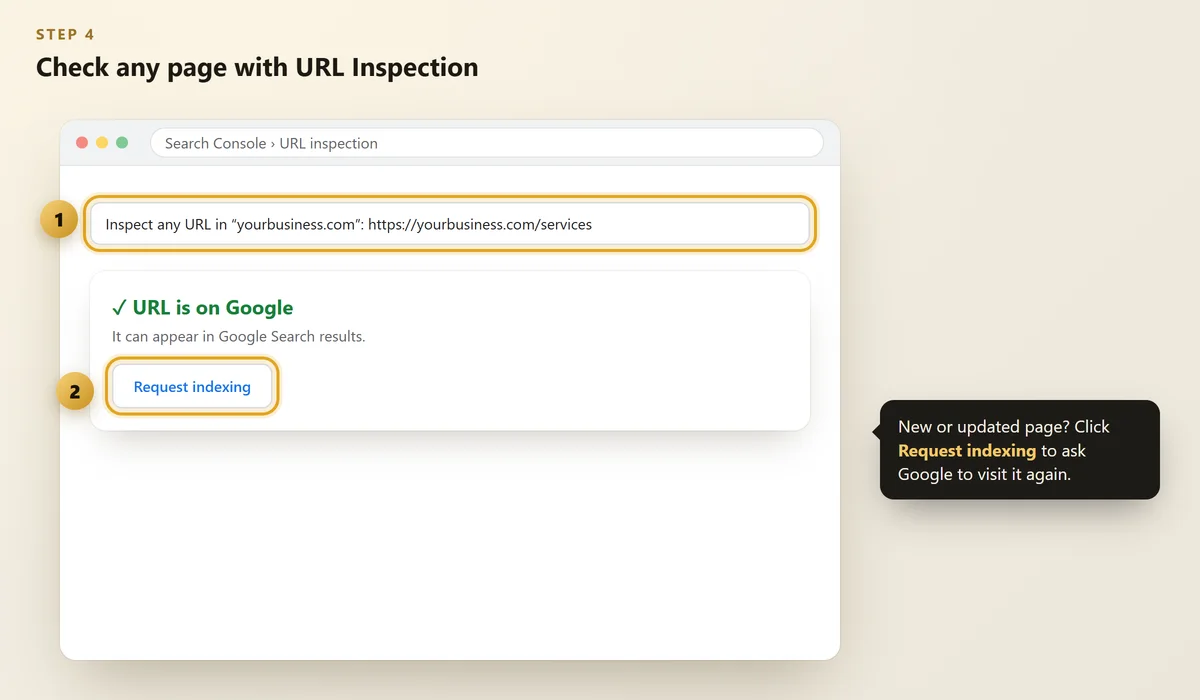
Paste any page address into the search bar at the top of Search Console.
Google tells you if that page is on Google — or why it isn't.
 Illustration
Published a new page or changed an important one? Click Request indexing. It doesn't guarantee instant results, but it asks Google to visit again. Details: URL Inspection tool.
Step #5: Read the Performance Report (The Fun Part)
After a few days, open Performance → Search results. You'll see four numbers:
Number | What it means |
|---|---|
Total clicks | How many people clicked your site in Google |
Total impressions | How many times your site appeared in results |
Average CTR | Clicks ÷ impressions (how attractive your result is) |
Average position | Your average ranking (1 = top) |
Scroll down to Queries — these are the actual words people typed to find you. Use them as ideas for new pages and blog posts.
Step #6: Fix the "Pages" Report Issues
Open Indexing → Pages. It shows which pages are on Google and which aren't.
Some "not indexed" pages are normal (like admin pages). Focus on important pages — your home, services and contact pages — and make sure they're indexed.
Also check the Core Web Vitals report for speed problems. Our guide on checking your website speed explains it in simple words.
FAQs
Is Google Search Console free?
Yes, it's completely free. You only need a Google account and access to your website or domain settings.
How long until my website shows in Search Console?
Data usually starts showing within a few days of verifying. A brand-new website can take a few weeks to get impressions and clicks.
Does submitting a sitemap make my site rank higher?
No. A sitemap helps Google find your pages; it doesn't push them higher. Rankings depend on useful content, relevance and quality.
What's the difference between Search Console and Google Analytics?
Search Console shows how people find you on Google Search. Google Analytics shows what visitors do after they arrive on your website. Many businesses use both.
Do I need Search Console if I already have a Google Business Profile?
Yes, if you have a website. Your Business Profile helps you on Google Maps; Search Console helps your website appear in normal search results.
Final Thoughts
Search Console is like a health report for your website — straight from Google.
Set it up once, submit your sitemap, and check it once a month. You'll know exactly what's working and what needs fixing.
Planning a new website? Use our free Website Planner first.
Website not showing on Google?
We'll check your Search Console setup, sitemap and key pages — free.
Written by Nancy Dahiya
Nancy is the founder of Pehchaan Digital. She helps hospitals, coaching institutes, hotels and local businesses get found online — and writes these guides in plain language so owners can see what actually works.
Keep reading
All guides → Websites
How to Check Your Website Speed (and Fix the 5 Biggest Problems)
Test your site free with PageSpeed Insights, understand LCP, INP and CLS in plain words, and fix what slows you down.
 Websites
12 Things Every Small Business Website Must Have
A practical checklist of what your website needs to turn visitors into calls, WhatsApp messages and walk-ins.
 Digital Marketing
QR Codes for Small Business: Get More Reviews, Followers & WhatsApp Chats
The three QR codes every shop, clinic and café should have — how to make them free, design them and place them.